| Preparing Your Presentation |
|---|
NOTE: The only supported format for presentations is PowerPoint (PPT). If your presentation is in another format, please bring a copy to the preview room and prepare it in PowerPoint format as a backup. Please note that Internet access will not be available during your presentation.
* ATTENTION* APPLE MACINTOSH USERS: Please be aware that AV equipment and computers prepared on-site are ONLY Microsoft Windows-based and do not support macOS.
| How to Upload Presentation Material |
|---|
| Preview Room Check-In (Mandatory for All Presenters) |
|---|
All presenters must check in at the Preview Room at least 2 hours before their session, even if you’ve uploaded your file online. Our technicians will assist with final uploads, edits, and file checks.
| Dual Podium Guidelines |
|---|
KSSS 2026 operates a dual podium system to ensure a seamless transition between speakers. Please follow these steps:
Arrive at the session room before your session starts. Wait in the designated speaker seats while the speaker before you is presenting.
Staff will guide you to the podium 2 minutes before your turn. After the moderator’s introduction, please begin your presentation immediately without repeating your name, affiliation, or presentation title.
- Note: A 1-minute warning will be given. If you exceed the allotted time, the system will automatically switch to the next presentation.
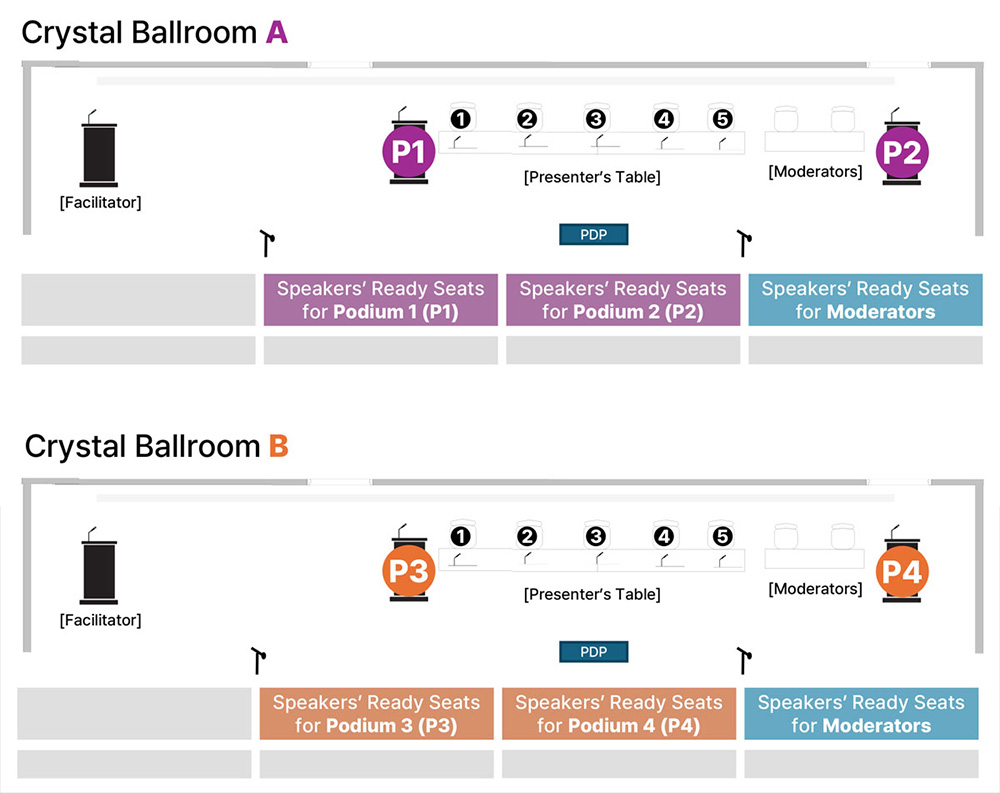
After your talk, please remain at the presenter’s table for the Q&A session.
| PowerPoint Tips |
|---|
PowerPoint Slides
The file should be in landscape orientation with a screen ratio of 16:9. PowerPoint templates are available in the “Download Center” on the KSSS 2026 website.
Please use general and basic fonts for compatibility. Fonts Arial and Helvetica are recommended for clarity and compatibility. If you want to use special fonts, you should submit the fonts with your presentation material. Use a font size of AT LEAST 24 points for body text and 36-40 points for headings. Confirm that the maximum number of lines in text slides is no more than 6 or 7.
If you copy the images to the clipboard and then Edit / Paste them into PowerPoint, the images will not be compressed and the PowerPoint file can become very large. To avoid this, insert them directly into PowerPoint (Insert / Picture / from File).